Cyanotype Photo Upload
Luang Prabang, Laos with Han Cao
Please read through the instructions below and use the form at the bottom of the page to upload your photos no later than August 20, 2026.
Details
If you would like to explore cyanotype with one of your own images, please supply high-resolution photos no later than Thursday, August 20, 2026. This will allow Han time to review and convert the images into negatives before our workshop time together in Laos.
Number of Photos
If you’d like to work with your own images, we recommend sending a minimum of 3 high-resolution photos and a maximum of 5 high-resolution images. This way Han can decide which photos will be best suited to the Cyanotype process (more on what types of images work best below).
Image details
To prepare images for the cyanotype process, Han will convert the images into digital negatives. During this process the detail in images gets simplified. For this reason we recommend images that are:
High contrast
Simple subject
Graphic
Minimal details
We do not recommend images that are:
Low contrast
Heavily detailed
Subject matter can be almost anything, but simpler, high-contrast images work best — think a bold floral shot or graphic architectural form. Busy images like city skylines, animals, or people (unless very high contrast) usually don’t work well. A single, clear subject is ideal.
Size of file + file type
Your photos must be high resolutionand follow these guidelines:
Must be 300 dpi.
Needs to be large enough to print an 8x10" photo if possible, but 5"x7" is ok. The resolution for an 8x10 at 300 dpi is 2400x3000 pixels.
File Type: Please ensure all photos are converted to jpegs in the desired photo size.
Testing your Photos
Before you submit any photos, we suggesttesting the photo to give you an idea of whether it will work well for the cyanotype process. The best way to do this is to make the image a “monotone” by applying the black and white filter using your phone's photo editing software or by using a desktop app, such as Photoshop.
To test your images on an iPhone, follow these steps:
> Open the Apple Photos app and tap on the photo you want to edit.
> Tap the Slider icon (three horizontal lines) at the bottom of the screen
> Tap the Filters icon (three overlapping circles) in the menu at the bottom of the screen.
> Swipe left through the filters until you find “Mono” (it’s a black and white filter)
> This will show you roughly how your photo will look after the cyanotype process
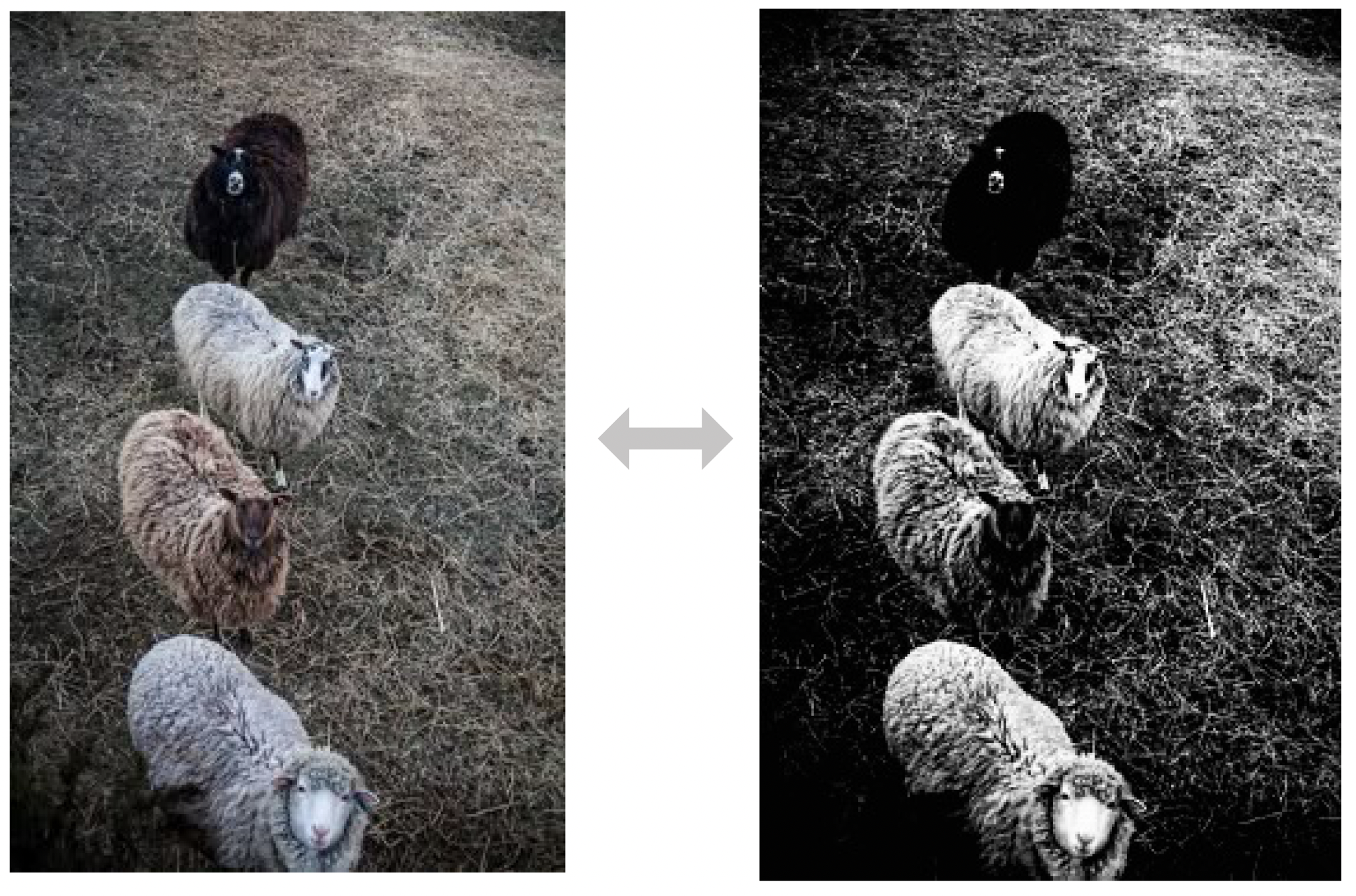
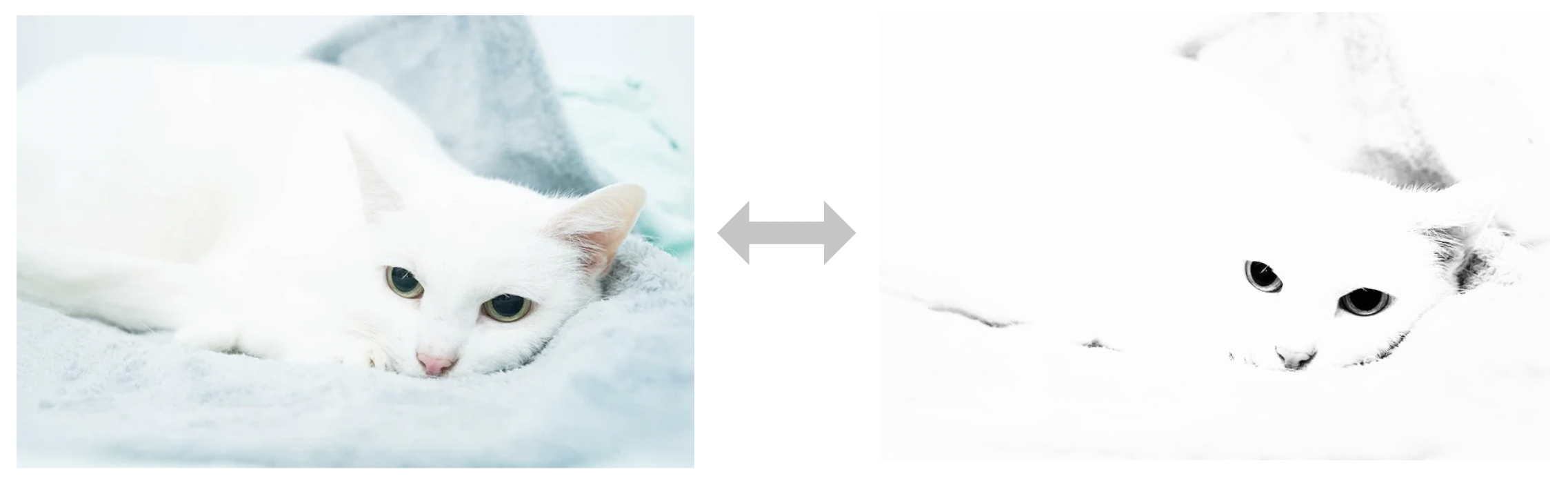
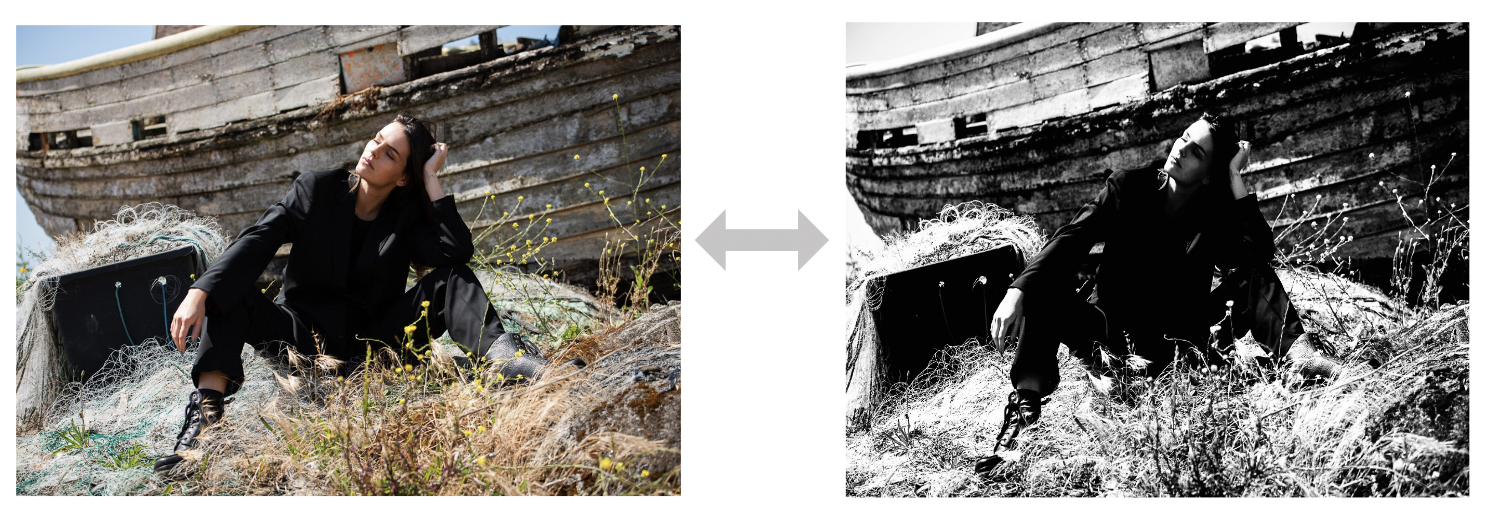
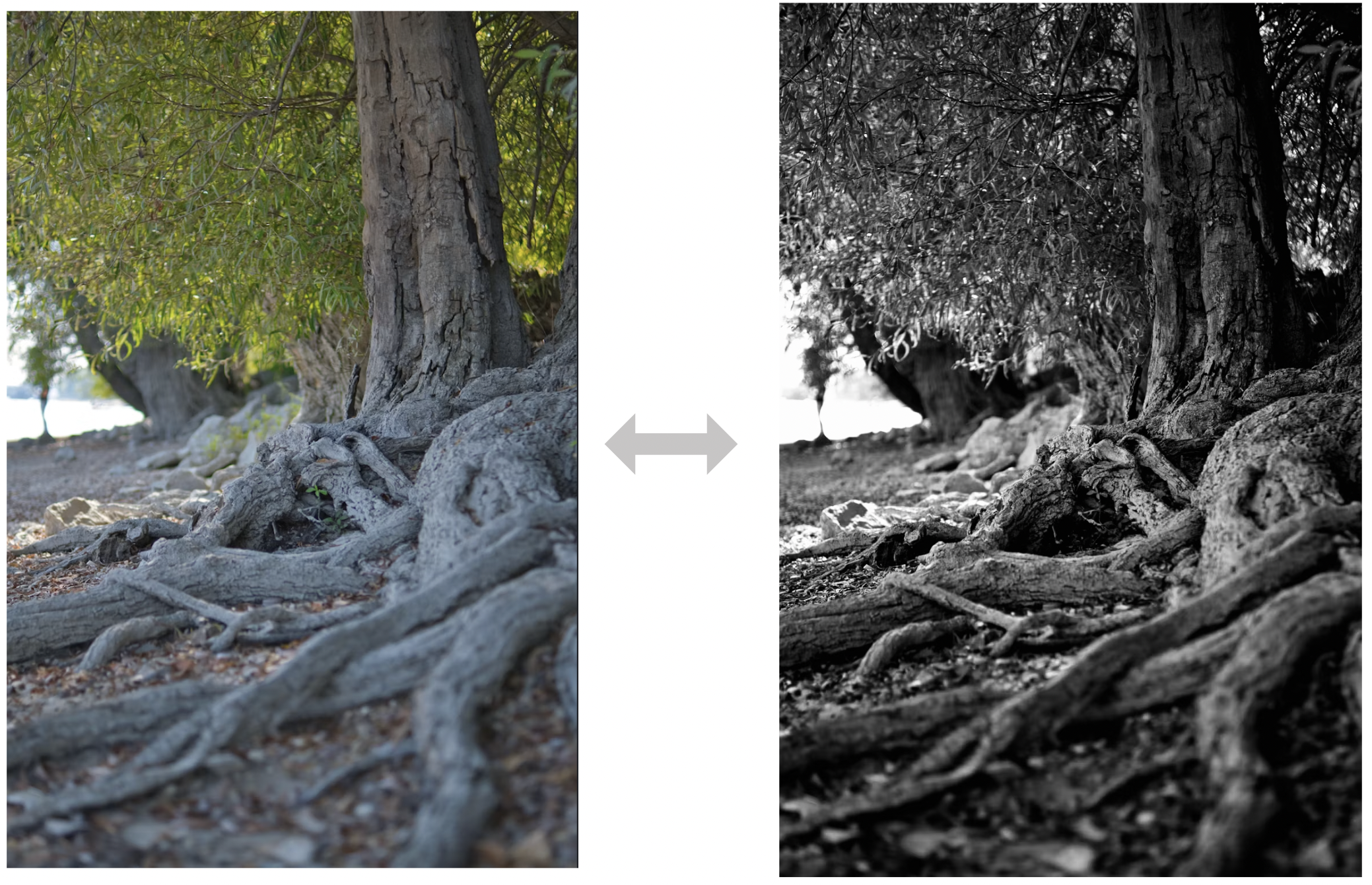
Photo Examples
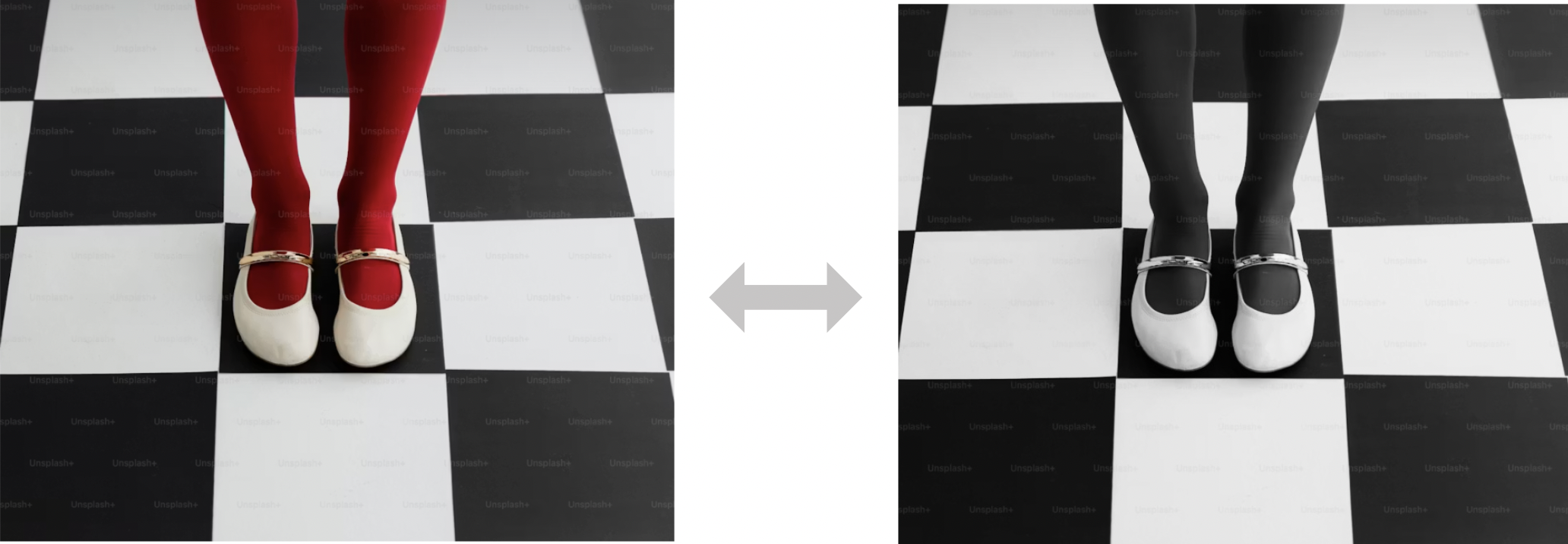
A few examples of how cyanotypes may look after processing:
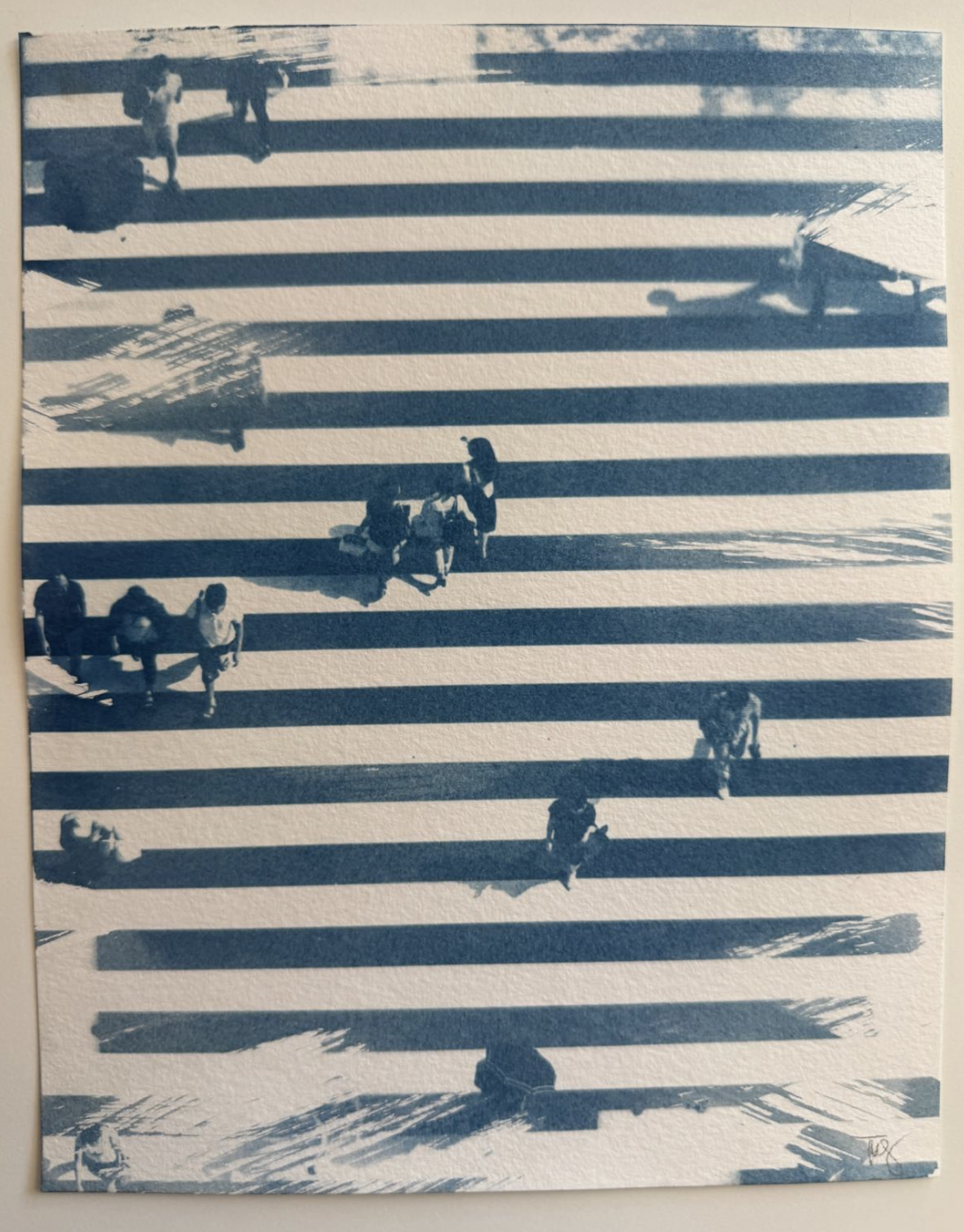
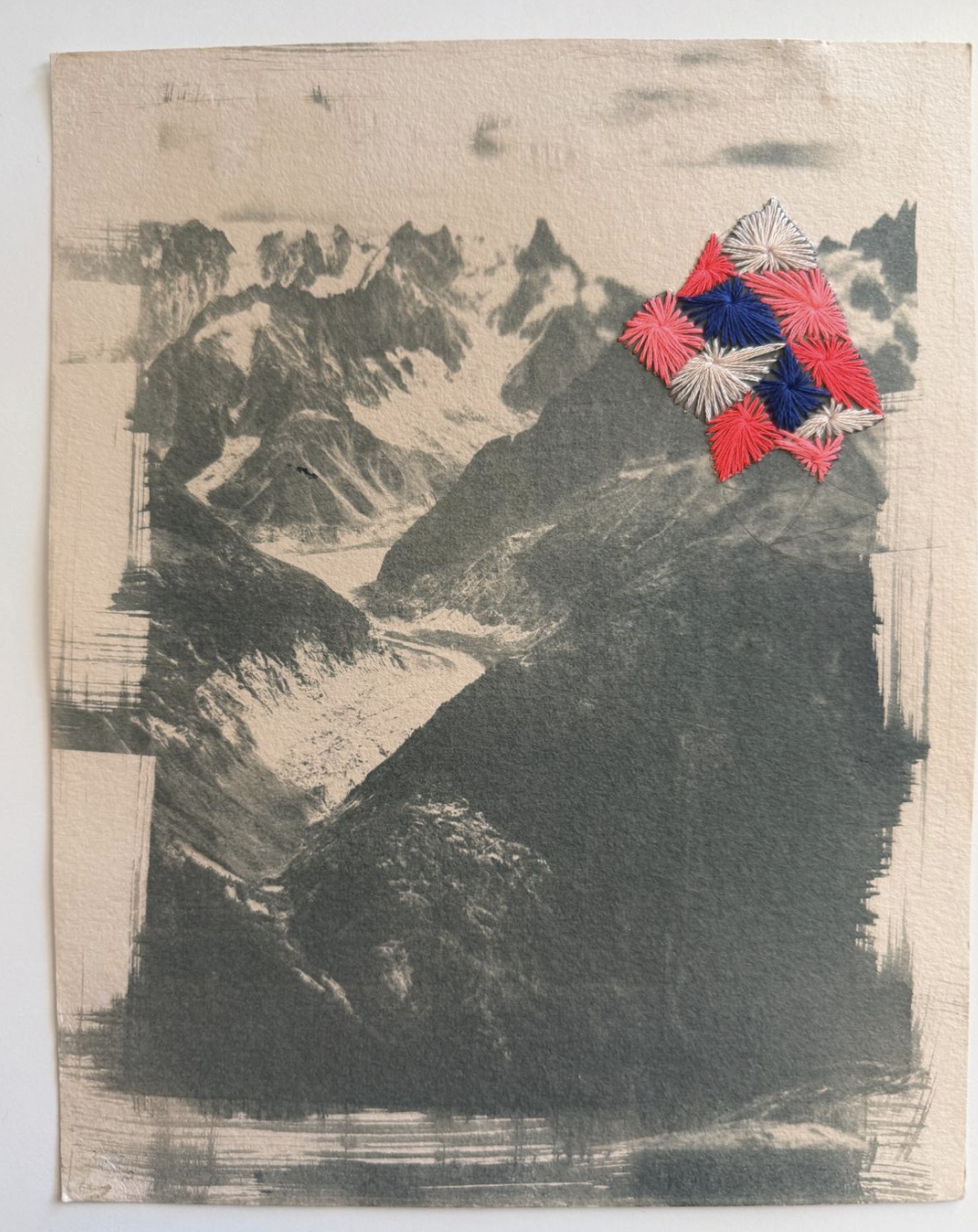
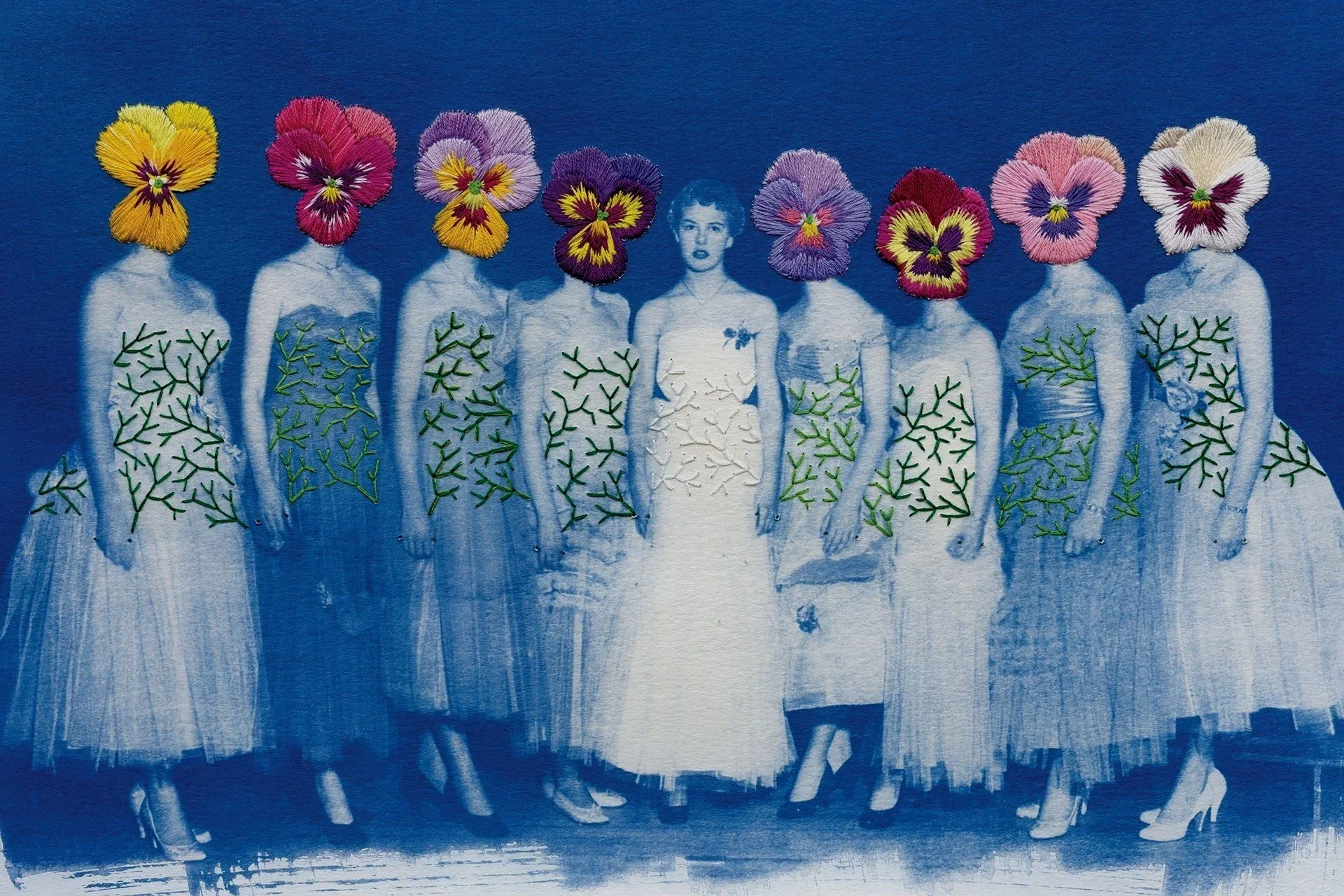
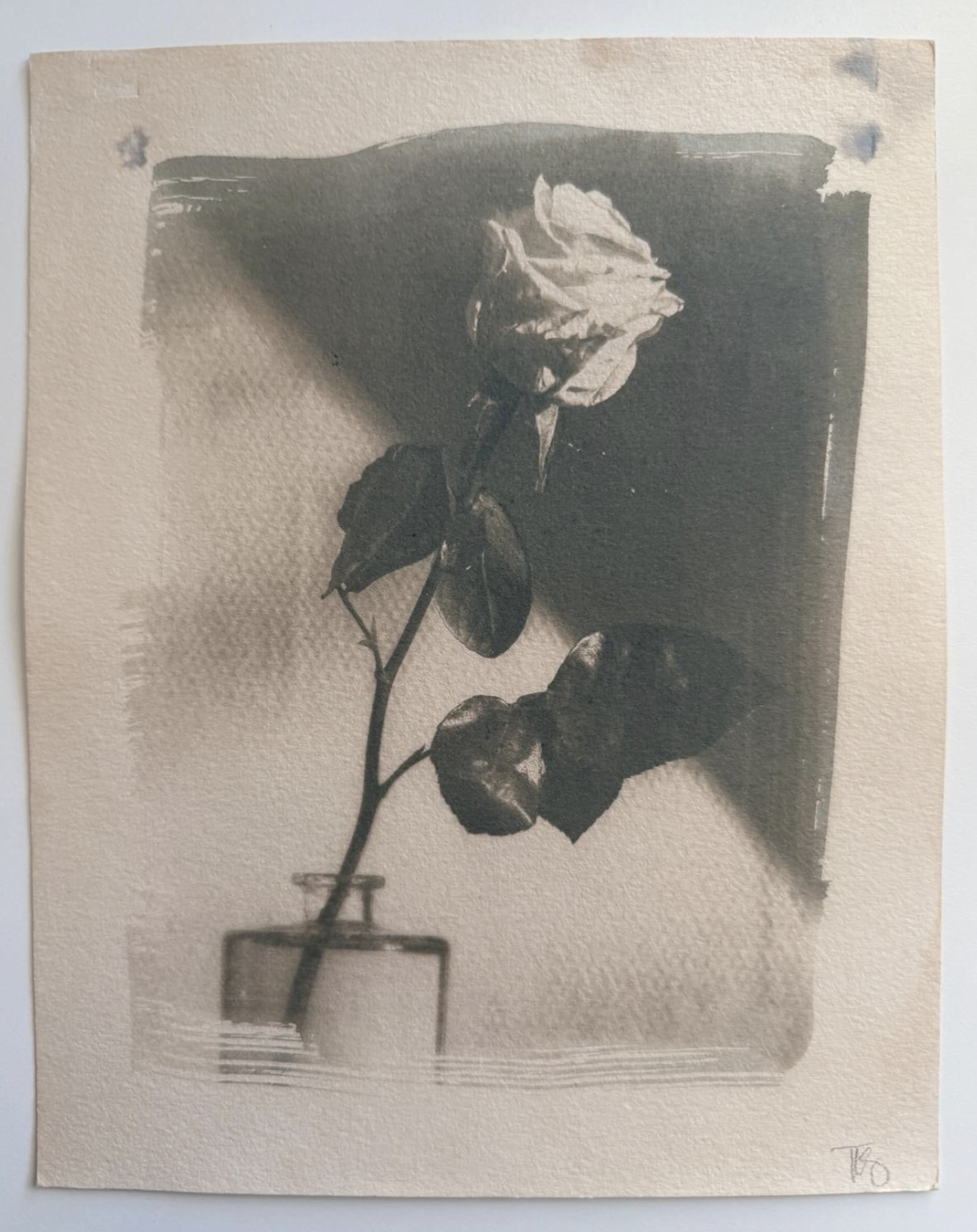
Example Images that will convert to cyanotype well
High Resolution
Single Focus, simple details
High visual contrast
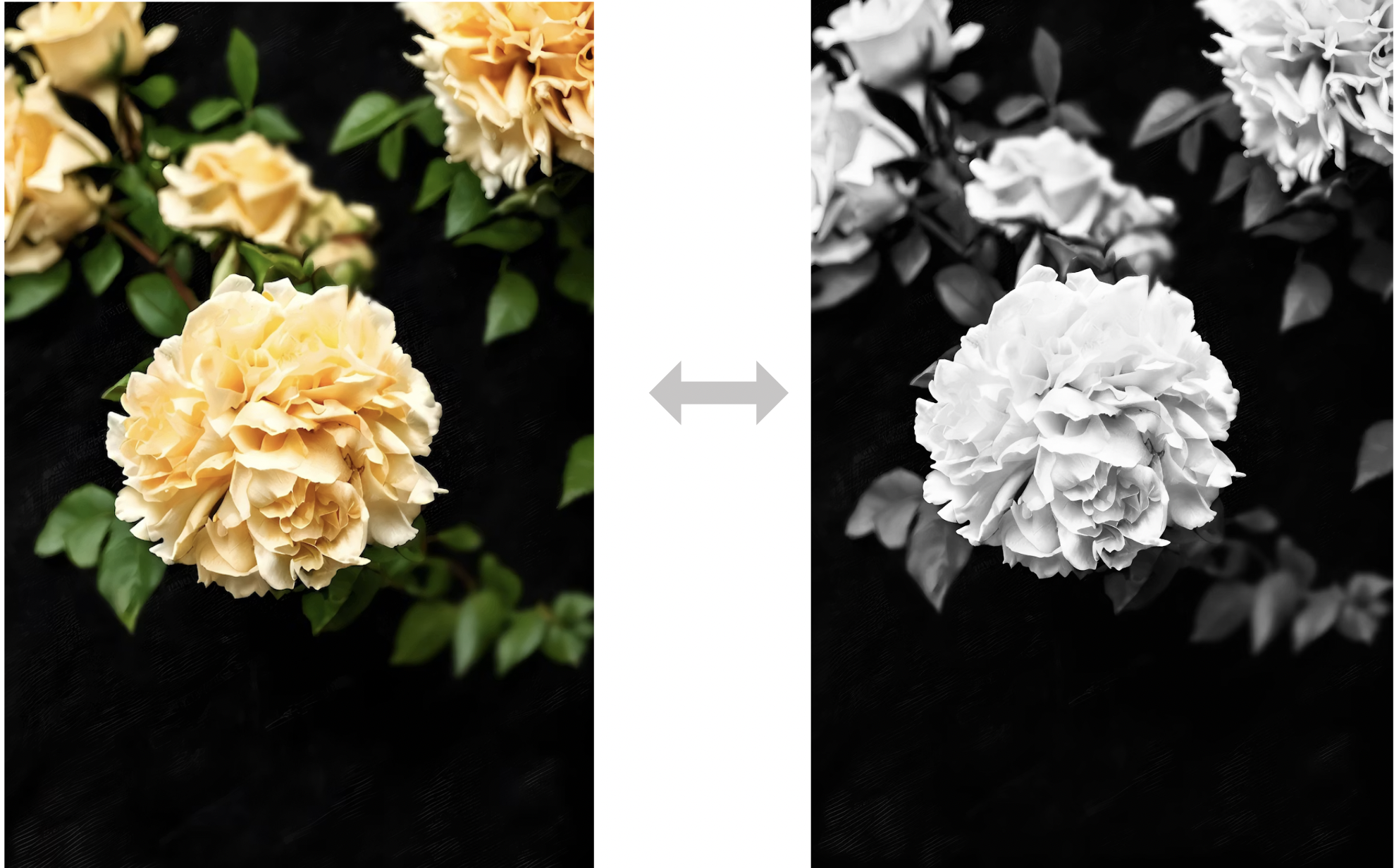
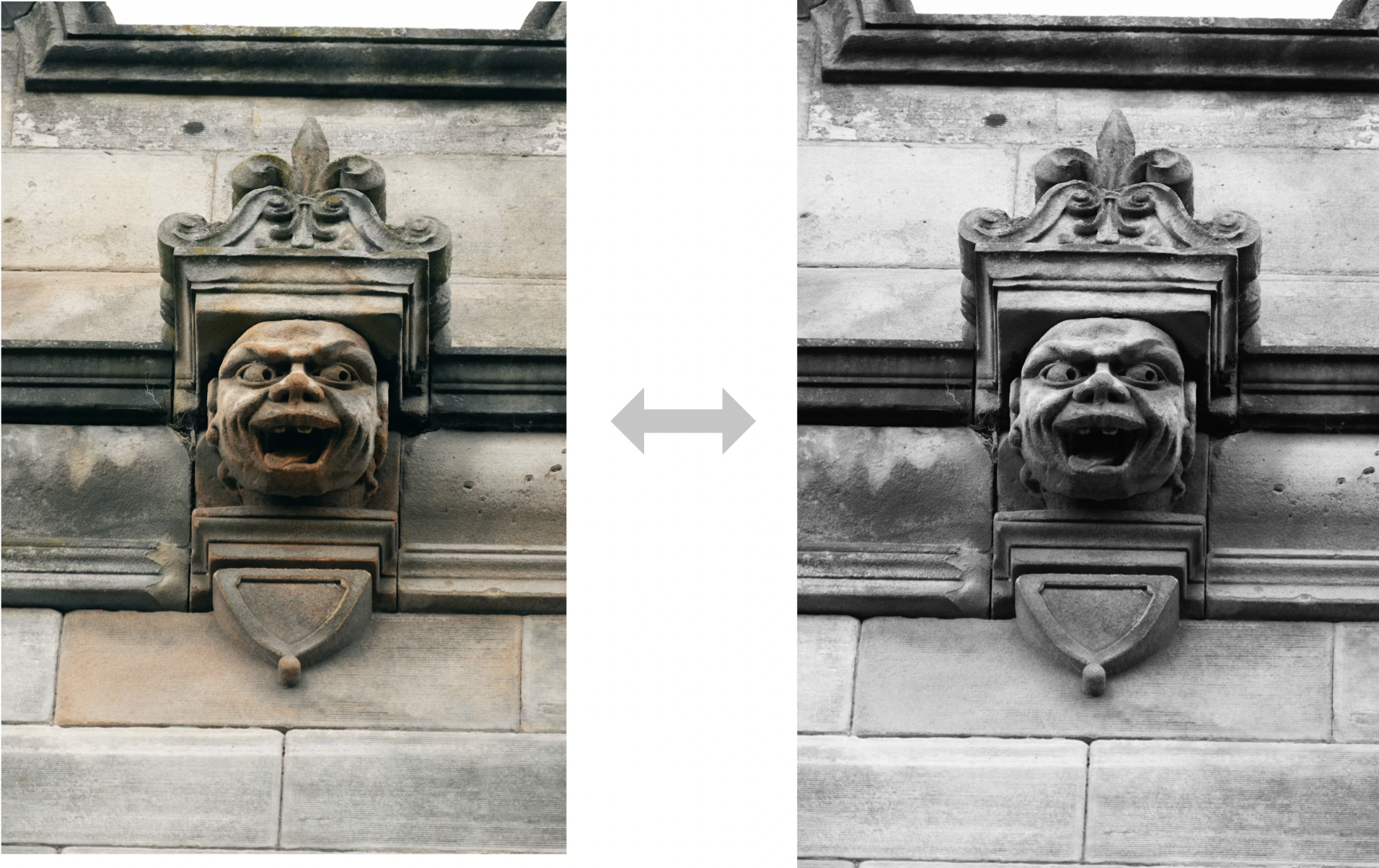
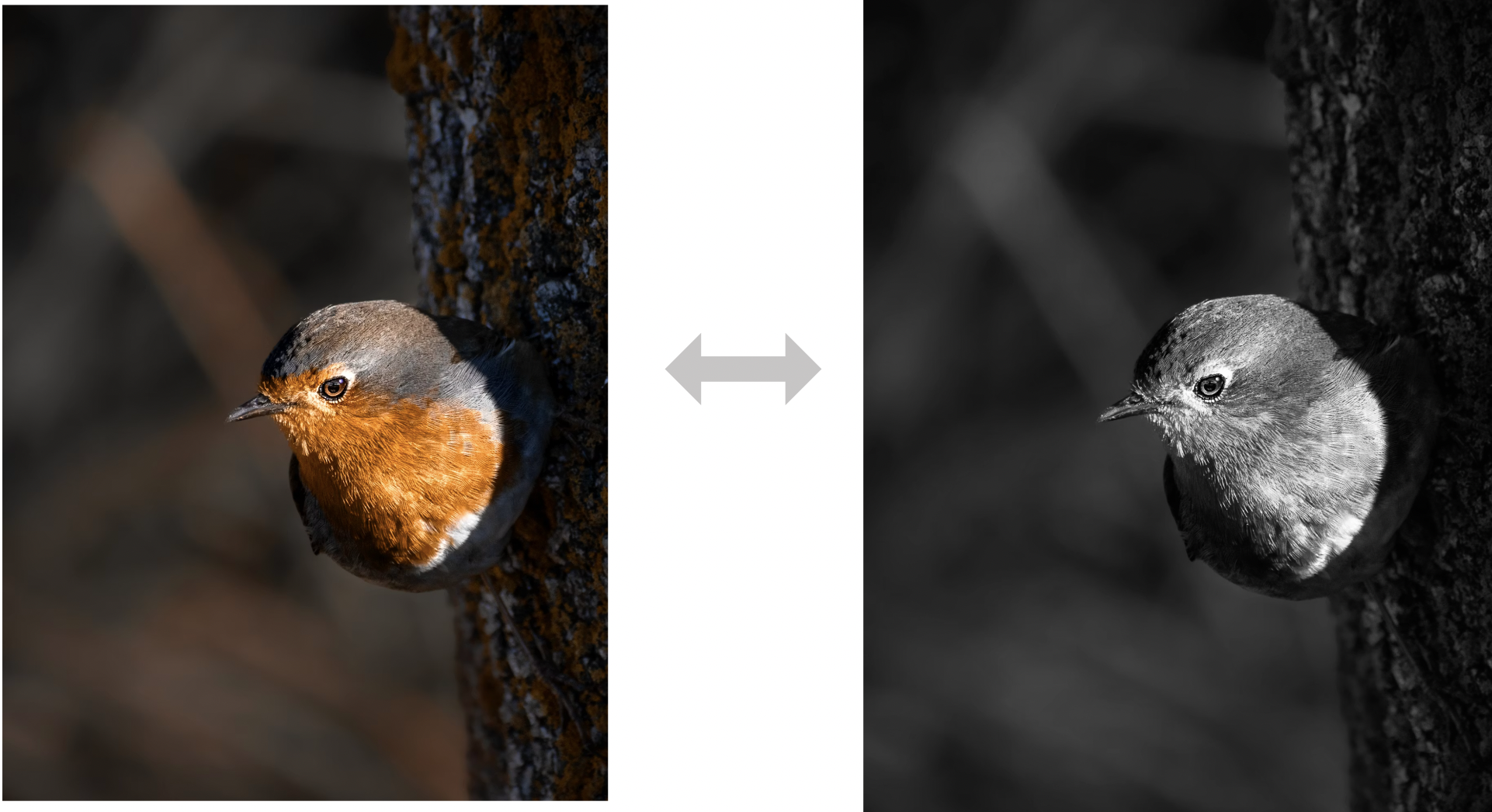
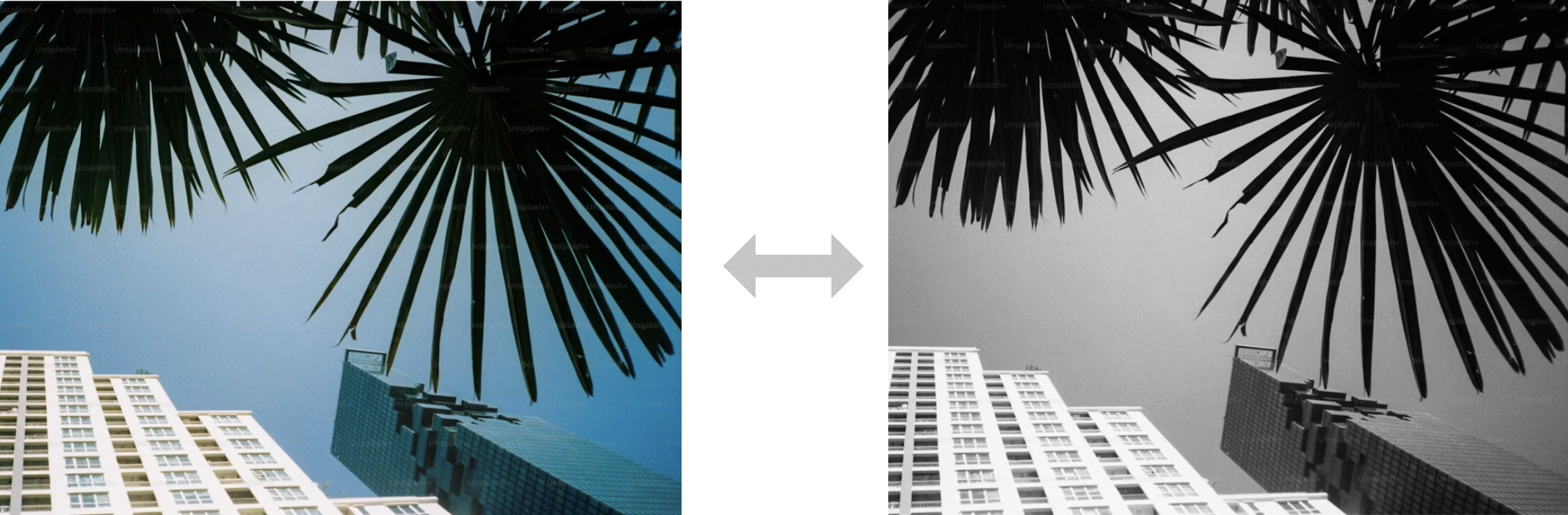
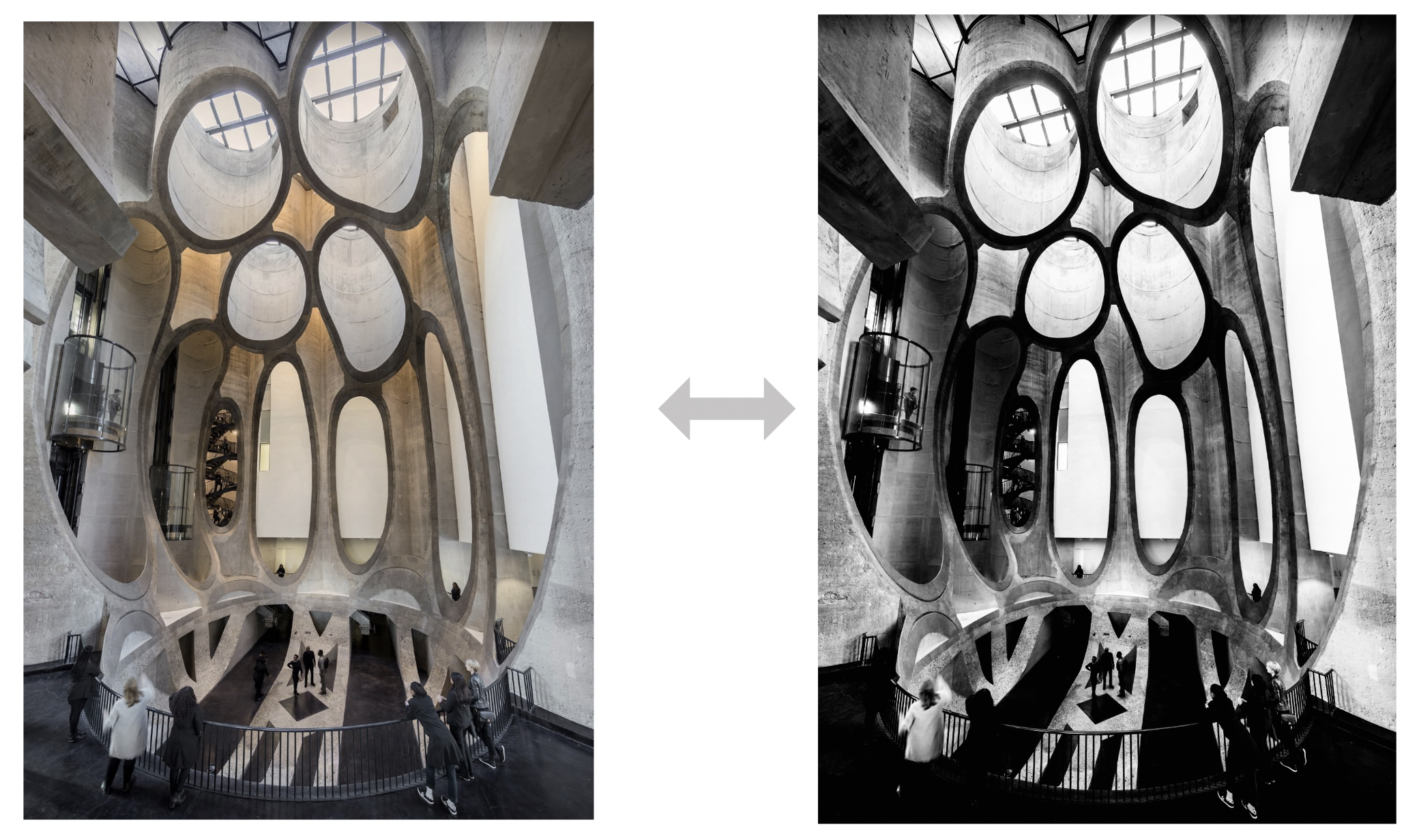
Example Images that will not convert to cyanotype well
Low Resolution
Too many details - no single focus
Not enough visual contrast